
On Android devices, some actions open a page in an “in-app browser” window. If you need to leave the app briefly—for example, to retrieve a verification code from another app (like SMS or email)—the in-app window may close when you return, and you may land back on the Home screen of the app. To prevent this...
-
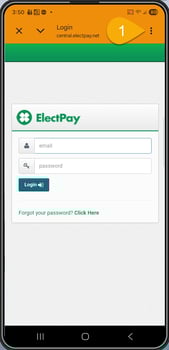
While you’re on the verification / sign-in page inside the Patter app, tap the three dots (⋮) in the upper-right of that page.
-
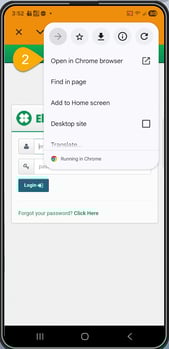
Select Open in Chrome browser (or Browser) from the menu.
-
Complete the verification process in your device’s browser. The page will remain open, so you can switch to another app to get your code and then return to the browser to enter it. To get back to the app, just click the back icon (<) bottom right of the screen.
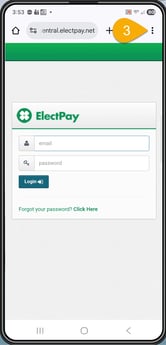
Result: The verification page won’t disappear when you leave the Patter app, and you can come back and finish entering your code.
Coming Soon: Our developers are working on an in-app prompt for Android users that will streamline this process.
Reach out appsupport@patter.com if you encounter any issues at all. We're here to help!