
To get acclimated, here's quick video to tour of the App's Resources Center.
To begin creating Resources Cards, select My Organization from your Admin Hub dashboard. and then select: .
.
Below is a breakdown of card features. Click the links for quick video tutorials on how to apply them.
-
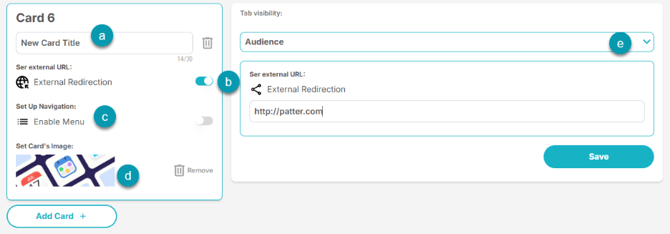
a. Create a New Card: Name/Title a card. Cards will appear in a vertical list in the app. Click the adjacent trash can to delete the card.
b. Enable an External Redirection: Toggle on and insert a URL in the box to the right to make the card a direct link to any URL.
c. Enable a Menu: Toggle on to create a dropdown menu of links under the card in the app. Each link can either go to an external webpage or open to component content inside the app.
d. Set Card’s Image: Each card requires an image. Here's a library of Pre-Sized Resources Images to get you started.
-
Supported formats: JPG, JPEG, PNG
-
Max image size: 10 MB
-
Resolution: at least 1500 × 488 pixels
- Click the adjacent trash can to delete the image.
e. Select an Audience: Card can be published to all followers or to a specific Tag group.
f. Save: Be sure to save each card!
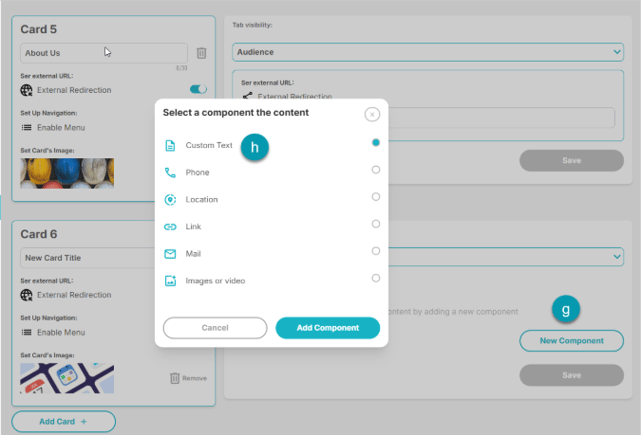
g. Card Components: If you create a card without an External Link, you can add Components (including phone numbers, images, text, and PDFs). This content appears directly in the app.
h. Custom Text (recommended): Choose Custom Text from the list of components for the most flexibility. Create your content, then click Add Component and Save.
-
PRO Tip: You can now easily re-order cards (and their contents) by clicking top left on each card, drag, drop.
Got questions? Reach out anytime to success@patter.com. We're happy to help!